Cannot Delete Emails in Windows Mail
Cause:
The Windows mailstore is the location on the computer in which the email service provider stores all email until you retrieve the email using Windows Mail. Sometimes the email messages get "stuck" in the inbox or the outbox in Windows Mail during this process and cannot be deleted. This issue is usually caused by a corrupt mailstore
Resolution:
1. Rebuild the Windows mailstore
Rebuild the mailstore by following the steps below.
- Back up the email message(s) that you want to keep.
- Close Windows Mail.
- Click Start , Computer , double-click Local Disk (C:) , Users , your username folder , AppData , Local , Microsoft , and then Windows Mail .
- Locate and delete the file named WindowsMail.MSMessageStore .
- Double-click the Backup folder (it is also contained within the Windows Mail folder).
- Double-click the New folder.
- Locate and delete the file named WindowsMail.MSMessageStore
- Open Windows Mail to rebuild the mailstore database.
Note: If you cannot access the AppData folder, the system files and folders are hidden. See the Access hidden files and folders section of this document for information about how to "unhide" the system files and folders.
You should now be able to view and delete the problematic message(s).
Access hidden files and folders
To access hidden files and folders, follow the steps below.
NOTE: The steps below assume that you are not in the Classic View of the Control Panel.
- Click Start , Control Panel , Appearance and Personalization , and then Folder Options to open the Folder Options window.
- Click View , locate the Hidden files and folders folder under the Advanced settings section of the screen, click Show hidden files and folders , Apply , and then OK .
You should now be able to access the AppData folder.
If the issue is not resolved.
To use the System Restore wizard to return the computer to a previous restore point, follow the steps below.
- Click Start , type system into the search field, and then select System from the list.
- Under the Tasks pane, click System protection . Grant permission to continue, if prompted. Click System Restore to open System Restore wizard.
- Follow the on-screen instructions to return the computer to a previous restore point.
NOTE: If an error message appears indicating that the computer cannot be restored to the point you selected, try a different restore point.
3. Run Spyware Scan With Windows Defender
- Click Start , All Programs , and then click Windows Defender.
- The top of the page lists any potentially unwanted or harmful software that Windows Defender has detected:
- If Windows Defender does not detect any potentially unwanted or harmful software, no action is required.
- If Windows Defender detects potentially harmful software, Windows Defender displays more detailed information so that you can decide to remove or temporarily disable the program that was found.
Windows Defender opens to the home page. 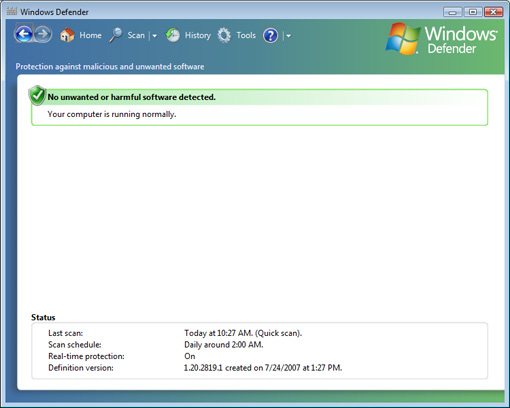
Scanning for malware/spyware
You can use Windows Defender to run a quick scan of your computer or a full system scan. If you suspect malware in a specific area of your computer, use Windows Defender to run a custom scan on individual drives and folders. To run a quick scan, click Scan at the top of the page. For other scan options, click the arrow next to Scan .
TKB:1113